Analyzing publicly-exposed Cobalt Strike beacon configurations

When it comes to attacker infrastructure, some threats are more stealthy than others. Searching “cobalt strike beacon” in Shodan or similar tools can reveal exposed Teams Servers that are not properly protected from the public eye – as shown below.

Example Cobalt Strike beacon configuration results from Shodan

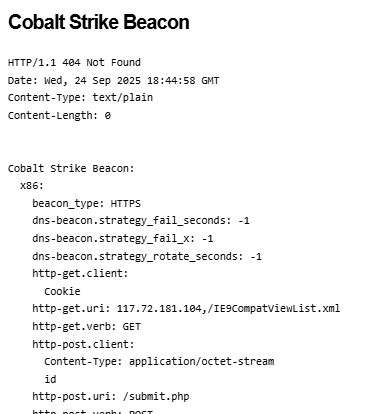
Additionally, these servers often expose details of configured beacon behavior that can be used to study how attackers are setting up initial payload functionality – an example is shown below.

Example beacon configuration screenshot from Shodan

These types of details are invaluable and allow us to study the settings attackers are using for their Cobalt Strike payloads – often these carry over into other frameworks as well such as Sliver, Mythic, etc. In this post, I present a statistical summary of beacons exposed at the time of this writing to help suggest detection and hunting ideas for blue teams.

One of the most obvious things we can look at first is understanding the type of beacons that threat actors are using – Cobalt Strike supports a variety of types including HTTP, HTTPS and DNS – threat actors today typically use HTTPS, as evidenced in the below analysis (with DNS being exceedingly rare due to how slow they are to interact with).

Cobalt Strike Beacon Types

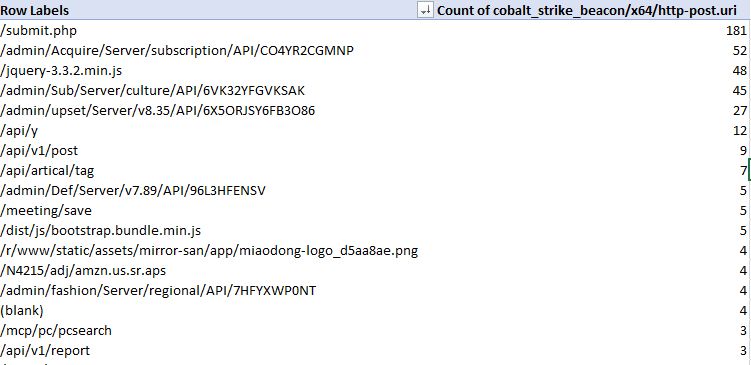
When threat actors are setting up an HTTP-based beacon, they must configure different properties such as the URIs that will be invoked, the user agent, the HTTP verbs, etc – so let’s take a look at these – starting with the most common POST URIs setup by actors.

Most common POST URIs for Beacons

A couple of these standout – threat actors really like ‘submit.php’, URIs that appear to be API endpoints and URIs that look like common web-app behavior such as loading jquery. This is good material for pivoting using other material to find potential C2 behavior in your network.

Looking at sleeptime also exposes some interesting data – the vast majority of exposed configurations used the default sleeptime setting of 60 seconds – the next biggest bucket of actors reduced this to 3 seconds – then we can observe a variety of different configurations.

Sleep Time configurations from Beacons – Sleep Time on the left, count of appearances on the right

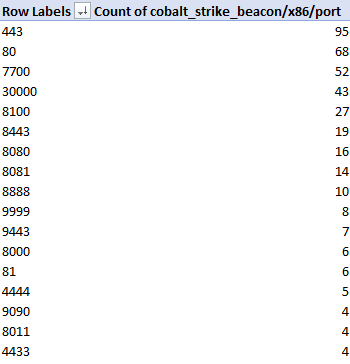
In terms of TCP Ports, we observe beacons communicating on a wide variety of outbound connections. In my experience doing Incident Response, C2 traffic tends to stick to port 80 or 443 but this is evidence that this is not always the case!

Most common ports for beacon configurations

The above image shows only the most common ports in use – there were dozens of other ports not pictured that were used by 3 or less observed configurations.

What about the HTTP user agent in use? There was a significant amount of variety here (as expected), with configurations trying to impersonate various browsers and devices such as iPads, Mac OS, Windows, etc. The most commonly observed ones are shown below.

Most common User Agents observed in configurations

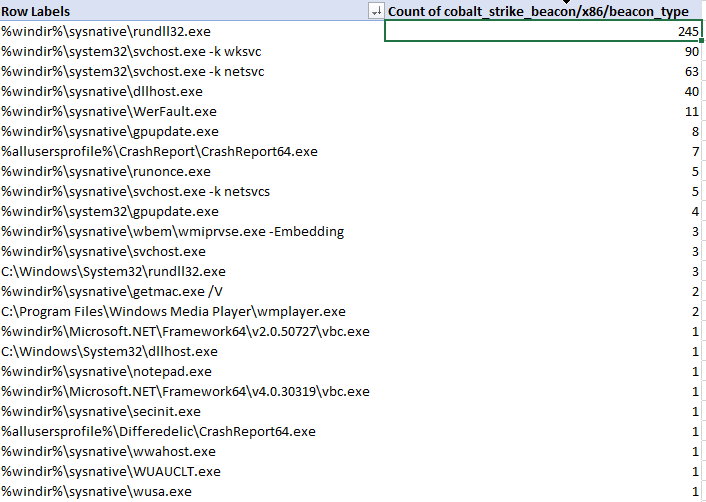
Let’s now analyze the characteristics of beacon process spawning and injection behavior. Cobalt Strike enables operators to configure ‘post exploitation’ configurations that control how sub-processes are spawned from a primary beacon. The table below represents the binaries that were configured for use with post-exploitation tasks such as screenshots, key-logging, scanning, etc.

x86 spawn_to configurations for Cobalt Strike beacons

As we can see, the most common choice by far was rundll32.exe, followed by svchost.exe, dllhost.exe, WerFault.exe and gpuupdate.exe – but there are definitely some less-observed binaries in the table. I would urge defenders to ensure you are considering all possible hunting options when looking for C2 traffic in your network.

There are many additional aspects of Cobalt Strike configurations that we as blue-teamers can pivot and hunt on throughout our networks – the goal of this is to help shine some light on the most commonly used and abused components so that hunt and detection teams can embrace these attributes and improve their security posture. My hope is that you can immediately take some of these data points and action them internally on your own network for finding suspicious activity, should it exist.

I’ll continue this analysis in an additional post as I dive into other C2 servers and additional discovery mechanisms for Cobalt Strike servers, among other platforms.

Large-Scale Hunting and Collection from Immature Networks

Incident Responders often find themselves investigating computer incidents for clients who may not have the best security posture – lack of centralized SIEM logging, mature EDR deployment and general inability to centrally query or otherwise collect data from across the network.

This is a real problem when investigating – it means you can’t rapidly pivot on Indicators of Compromise (IOCs) such as IP addresses/Ports, Process information (names, commandlines, etc), User activity, Scheduled Task or Service metadata such as known-bad names or binaries and other system information. Without centralized tooling or logging, using IOCs or Indicators of Attack (IOAs) can be extremely difficult.

I’ve previously made some scripts to aid my own objectives to solve this problem such as WMIHunter (https://github.com/joeavanzato/WMIHunter/tree/main) and variations of using WMI at-scale in C# and Go respectively – but recently I wanted to revisit this problem and make a more modular and flexible solution.

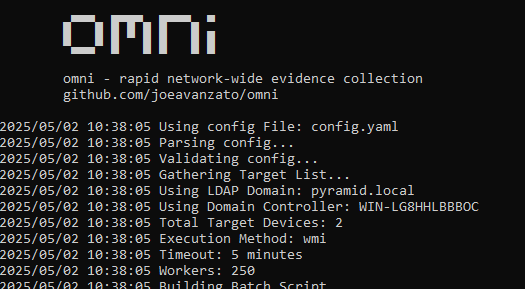
I’d like to introduce a tool I wrote aimed at solving this problem and providing DFIR professionals another open-source solution – hence, omni [https://github.com/joeavanzato/omni].

At its core, omni is an orchestration utility providing analysts the means to execute commands on hundreds or thousands of remote devices simultaneously and transparently collect and aggregate the output. This means any command, script, tool or anything else that you as an analyst want to execute and collect some type of output from, omni helps make that easy to achieve at-scale.

Can omni help you?

Ask yourself these questions – if the answer to any of these is ‘yes’, omni can help you.

  • Do you have a need to execute and collect the results of one or more commands/scripts/tools on multiple devices concurrently?
  • Do you need to collect data from a large amount of devices that are not connected to the internet?
  • Have you ever run into issues trying to rapidly pivot on indicators of compromise across a large number of devices due to lack of data/logging/agents?
  • Does the current environment lack a centralized logging solution or EDR that can help you quickly query devices?
  • Do you need to execute a series of triage scripts on 1 or more networked devices?

As an example, let’s consider running processes and TCP connections – both are extremely common to collect to aid reactive hunts on known-bad during an engagement. omni works by allowing users to build a YAML configuration file containing command directives to be executed on targets – we can add, subtract or modify from this file as needed to serve any type of unique requirements. Below is an example of one way you could capture this data with omni:

command: powershell.exe -Command "Get-WmiObject -Class Win32_Process -Locale MS_409 -ErrorAction SilentlyContinue | Select PSComputerName,ProcessName,Handles,Path,Caption,CommandLine,CreationDate,Description,ExecutablePath,ExecutionState,Handle,InstallDate,Name,OSName,ProcessId,ParentProcessId,Priority,SessionId,Status,TerminationDate | Export-Csv -Path '$FILENAME$' -NoTypeInformation"
file_name: $time$_processes.csv
merge: csv
id: processes
tags: [quick, process, processes, builtin]

The above configuration tells omni to run the PowerShell command, automatically replacing any placeholder variables with the specified file-name – then omni knows that once collection is done, this file-name should be collected from the targets.

It is also possible to copy a script to the target and execute this, allowing omni to facilitate analysts with running more complex triage tools remotely.

command: powershell.exe C:\Windows\temp\ExtractLogons.ps1 -DaysBack 14 -OutputFile $FILENAME$
file_name: $time$_LogonActivity.csv
merge: csv
id: LogonActivity
tags: [access, user, builtin]
dependencies: [utilities\ExtractLogons.ps1]

The dependencies block allows users to specify one or more files or directories that this directive requires exist on the target prior to execution – dependencies are always copied into a single directory (C:\Windows\Temp) and then removed once execution is complete. Dependencies can also specify an http file that will be retrieved during parsing configuration.

dependencies:[https://raw.githubusercontent.com/joeavanzato/Trawler/refs/heads/main/trawler.ps1]

Typically though, if your configuration requires some remote files for download, you will be better off using the Preparation section of the configuration – this allows for commands to be executed for preparing the analysis environment – usually this means downloading any necessary tools that you want to deploy to targets, such as Autoruns or the Eric Zimmerman parsing toolset.

preparations:
  - command: powershell.exe -Command "iex ((New-Object System.Net.WebClient).DownloadString('https://raw.githubusercontent.com/EricZimmerman/Get-ZimmermanTools/refs/heads/master/Get-ZimmermanTools.ps1'))"
    note: Download and execute Get-ZimmermanTools into current working directory
  - command: powershell.exe -Command "iwr -Uri 'https://download.sysinternals.com/files/Autoruns.zip' -OutFile .\Autoruns.zip ; Expand-Archive -Path Autoruns.zip -Force"
    note: Download and unzip Autoruns

This can be used to help ensure that required dependencies exist prior to executing your configuration.

When omni runs, it will create two folders – ‘devices‘ and ‘aggregated‘ – inside devices a directory is created for each target device that will contain all data collected for that target. Aggregated will store any merged files once collection is complete depending on configuration settings – for example, all running processes for all computers if using the first config specified in this post.

Devices folder contains individual results, Aggregated folder contains merged results from all devices

Keep in mind – omni is designed to facilitate rapid and light-weight network-wide hunting – although it is of course possible to execute and collect any type of evidence – for example, launching KAPE remotely and collecting the subsequent zips from specified targets, like below:

command: C:\windows\temp\kape\kape.exe --tsource C --tdest C:\Windows\temp\kape\machine\ --tflush --target !SANS_Triage --zip kape && powershell.exe -Command "$kapezip = Get-ChildItem -Path C:\Windows\temp\kape\machine\*.zip; Rename-Item -Path $kapezip.FullName -NewName '$FILENAME$'"
file_name: $time$_kape.zip
merge: pool
id: kape
add_hostname: True
dependencies: [KAPE]

Of course, doing this across thousands of devices would results in a massive amount of data, but for a more limited scope this could be a highly effective means of collecting evidence – choose your configurations and targets carefully.

Below are some common command-line examples for launching omni:

omni.exe -tags builtin
- Launch omni with all targets from .\config.yaml having tag 'builtin' with default timeout (15) and worker (250) settings, using Scheduled Tasks for execution and querying AD for enabled computers to use as targets

omni.exe -workers 500 -timeout 30 -tags quick,process
- Add more workers, increase the timeout duration per-target and only use configurations with the specified tags

omni.exe -targets hostname1,hostname2,hostname3
omni.exe -targets targets.txt
- Use the specified computer targets from command-line or file

omni.exe -method wmi
- Deploy omni using WMI instead of Scheduled Tasks for remote execution

omni.exe -config configs\test.yaml
- Execute a specific named configuration file

Ultimately, you can use omni to launch any type of script, command or software remotely at-scale on any number of targets. I’ve often found myself on engagements for clients who lack effective SIEM or EDR tooling, meaning that when we find something like a known-bad IP address, Process Name, Binary Path, Service/Task Name or some other IOC, we have no way to effectively hunt this across the network.

omni comes with a pre-built configuration file that contains directives for common situations such as collecting running processes, TCP connections, installed Services/Tasks, etc (https://github.com/joeavanzato/omni/blob/main/config.yaml). Prior to use, you should customize a configuration that meets your collection needs depending on the situation at hand. omni also includes some example configuration files for specific use-cases at https://github.com/joeavanzato/omni/configs.

Please consider omni during your next engagement in a low-posture network suffering a cyber incident. If you experience any bugs, issues or have any questions, please open an Issue on GitHub. I am eager to hear about feature requests, ideas or problems with the software.

Ransomware Simulation Tactics

“The only real defense is active defense” – organizations must be proactive in their pursuit of cybersecurity defense else when a real adversary turns up, they will be completely outmatched.

When it comes to ransomware, enterprises adopt all manner of defensive posture improvements with the goal of early detection and prevention – this usually includes tuning EDR, implementing network segregations, data monitoring mechanisms for the truly mature and sometimes bespoke “ransomware prevention” solutions designed to halt threat actors mid-encryption through agent-based solutions or otherwise.

The one thing that tends to be overlooked is the actual act of adversary emulation – simulating a true-to-life ransomware payload detonation to ensure it will be detected or prevented with current controls.

This is where impact comes in. Impact is a tool I developed to help organization’s be more proactive about their defense and simulate a realistic ransomware threat in their network – it is highly configurable, highly modular and will help blue teams be more confident in their detection and prevention strategies.

Beyond file encryption, impact is designed to truly emulate a modern ransomware payload – this includes a variety of deployment options, offensive capabilities and a modular configuration to tailor it each individual enterprise requirements.

For example, impact offers the below options:

  • Adjust level of concurrency for encryption/decryption
  • Filter by filename/extension/directory for file targets
  • Utilize hybrid encryption to benefit from fast symmetric encryption of file data and protect each symmetric key with an asymmetric public key
  • Capability to create a set of mock data for later encryption/decryption tests
  • Capability to terminate configured processes and services that may interfere with encryption operations
  • Capability to block selected ports/domains via Windows Firewall to tamper with EDR/Backup communications
  • Capability to eliminate all Volume Shadow Service (VSS) copies to tamper with potential backups
  • Capability to tamper with Windows Defender settings
  • Capability to deploy on remote devices from a list of targets or Active Directory using Windows Services, Scheduled Tasks or WMI
  • Capability to enumerate local/network drives for complete system encryption
  • Capability to emulate a number of different ransomware threat actors, including mimicking their commonly used ransomware note names, extensions, note contents and encryption algorithms among other things
  • Implements a configurable intermittent-encryption scheme for efficiency

impact has lots of optional features and modularity to allow it to support a variety of use-cases and requirements when it comes to ransomware simulation on a per-environment basis.

So how do I use it?

At the core, it is extremely simple to ‘just encrypt’ a directory using the following command (you don’t even need to specify a group, it will pick one at random):

impact.exe -directory "C:\test" -group blackbasta -recursive

When you execute this, it will crawl C:\test and encrypt any files matching inclusion/exclusion filters with parameters associated with the BlackBasta group as specified in config.yaml. Each encryption command will generate a corresponding decryption command inside decryption_command.txt – this will typically look something like below:

impact.exe -directory "c:\test" -skipconfirm -ecc_private "ecc_key.ecc" -cipher aes256 -decrypt -force_note_name ReadMe.txt -recursive

impact comes preloaded with embedded public and private keys for use if you don’t want to use your own – it’s also possible to generate a set of keys using the -generate_keys parameter – these can be subsequently fed into impact for use rather than relying on the embedded keys.

impact.exe -directory "\\DESKTOP1\C$\Users" -group blackbasta -recursive -ecc_public ecc_public.key

The above command will force the use of ECC for hybrid encryption and overwrite any group settings. It is also possible to force a specific symmetric cipher via the -cipher argument like below:

impact.exe -directory "C:\test" -group blackbasta -recursive -ecc_public ecc_public.key -cipher xchacha20

Keep in mind – if you supply a personal public key for encryption, you will also need to supply the corresponding private key for decryption!

impact can also create a set of mock data for you to encrypt rather than needing to do that yourself – just run it like below to populate the targeted directory:

impact.exe -create -create_files 12000 -create_size 5000 -directory C:\test

The above command will create 12,000 files with a total approximate data size of 5 Gigabytes in the specified directory – then we can target this directory with encryption/decryption tests as needed.

When checking directories or files to decide if they should be encrypted, impact uses the built-in configuration file (customizable) to apply the following logic:

  • Does the file extension match an inclusion that should be targeted?
  • Does the file name match one that should be skipped?
  • Does the directory name match one that should be skipped?
  • Is the file size > 0 bytes?
  • Does the file extension match an exclusion that should be skipped?

Assuming a file passes these checks, it is then added to the encryption queue. When doing decryption, checks are skipped and every file in relevant directories is checked for encryption signatures to determine if we should attempt to decrypt it.

This pretty much covers the encryption/decryption facilities built into impact – but be aware you can also specify custom ransomware notes, ransomware extensions and a host of other optional features if you need to.

impact also contains a variety of offensive emulations commonly employed by encryption payloads – the ability to kill specific processes, stop specific services, block network traffic by port or domain (resolved to IP address) and attempting to disable/set exclusions for Windows Defender. These are all documented at the command-line level and behave pretty much as you’d expect.

impact can also be deployed remotely via WMI, Windows Service or Scheduled Task – you can supply a list of target hosts via the command-line, an input line-delimited file or have impact dynamically pull all enabled computers from the current Active Directory domain for targeting.

impact.exe -targetad -directory "*" -recursive -public_ecc keyfile.ecc -cipher xchacha20 -ep 50 -workers 50 -exec_method wmi

The above command will pull all enabled computers from AD and copy impact to the ADMIN$ share via SMB then attempt to launch it via WMI – all command-line arguments will be preserved and passed into the created process (minus obvious exceptions such as exec_method and targetad, to name a few).

There are a lot of TODOs, optimizations and features to add to this – but for now, it works and does the job of (mostly) accurately simulating ransomware and commonly associated TTPs.

If you think you can detect ransomware on endpoints or fileshares, try it out and prove it.

If you have any bugs or feature requests, please open an Issue on GitHub or drop me an email at joeavanzato@gmail.com.